Please select an article from the left menu to display its content.
The Debit & Credit Notes settings page lets you control which fields appear on your printed/downloadable debit and credit notes, with a live preview, and lets you request a fully custom note layout from support.
Overview
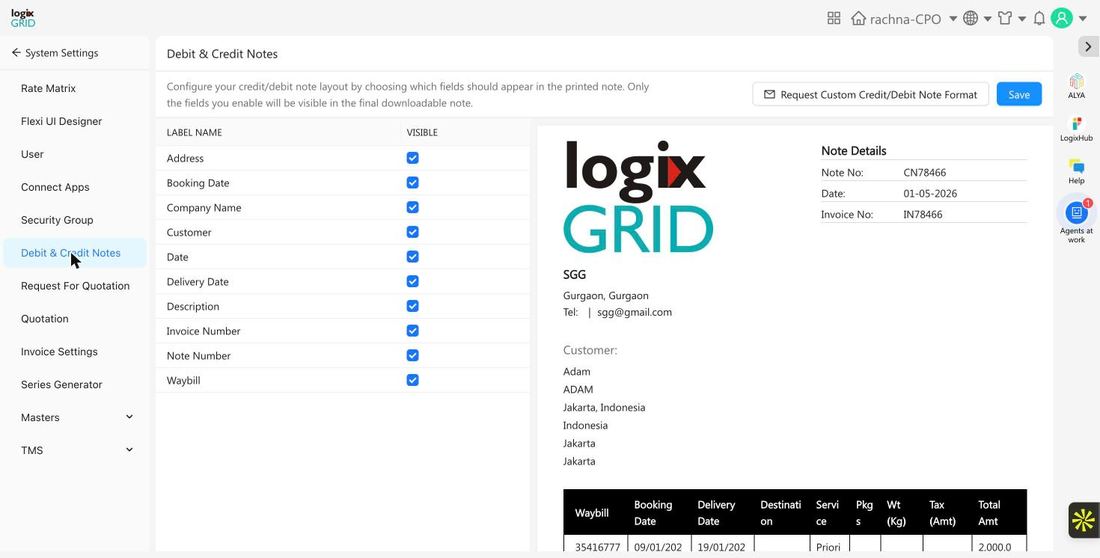
Unlike most System Settings screens, Debit & Credit Notes is not a list of records — it's a single configuration page. A checklist on the left lets you toggle which labels (Address, Booking Date, Customer, Waybill, and so on) appear on the note, while a live sample note on the right updates immediately so you can see the effect before saving.
Prerequisites
- Admin or Finance role with access to System Settings.
- Decide in advance which fields your business needs on printed notes (for compliance, customer clarity, or internal tracking) before changing the defaults.
Configure Note Field Visibility
- Go to System Settings → Debit & Credit Notes.
- In the field list on the left, check or uncheck the Visible box next to each label to include or exclude it from the printed note.
- Watch the sample note on the right update in real time as you toggle fields.
- Click Save to apply your changes to all future debit/credit notes.
- If you need a layout beyond what the visibility toggles support, click Request Custom Credit/Debit Note Format to submit a request to support for a fully custom template.
Field Reference
| Field | Description |
|---|---|
| Address | Customer or company address block. |
| Booking Date | Date the shipment/order was booked. |
| Company Name | Your company name, as shown in the note header. |
| Customer | Customer name and details. |
| Date | Note issue date. |
| Delivery Date | Date of delivery for the related shipment. |
| Description | Line-item or note description text. |
| Invoice Number | Linked invoice number, if applicable. |
| Note Number | The debit/credit note's own reference number. |
| Waybill | Waybill/tracking number for the related shipment. |
Usage Across Modules
- DMS / FreightNX: Debit and credit notes are generated against shipments and invoices, and this settings page controls what appears on every note printed or downloaded from those modules.
- Changes apply going forward to newly generated notes; they do not retroactively change notes already issued.
Notes / Best Practices
- Keep fields required for local tax/compliance rules (such as Date, Invoice Number, and Address) enabled at all times.
- Use the live preview to check formatting before saving — small changes can affect how much information fits on one page.
- If your business needs a layout the toggles can't produce (custom branding, extra columns), use Request Custom Credit/Debit Note Format instead of trying to work around it with the available fields.
FAQs
- Will changing these settings affect notes I've already issued?
- No. Changes apply only to notes generated after you save.
- Can I reorder the fields on the note?
- The standard settings page controls visibility only, not field order. For a custom layout, use the Request Custom Credit/Debit Note Format option.
- Who can change these settings?
- Users with Admin or Finance-level access to System Settings.