Please select an article from the left menu to display its content.
LogixDocs is the document engine built into LogixFlow for creating, sending, and tracking the paperwork your logistics operations run on — quotes, booking confirmations, bills of lading, delivery orders, payment requests, and similar documents. Reusable templates define the layout and the fields that get filled in automatically, so your team spends less time re-typing information that already exists elsewhere in LogixFlow, such as a FreightNX shipment.
LogixDocs has three screens, all reached from the same place in the sidebar:
- Document Dashboard — a quick summary of how many documents you have, how many are waiting on a response, and your most recently created documents.
- Document Workspace — where you create, edit, send, share, and track every document.
- Document Template — the library of templates available to you, and where you design your own.
Getting to LogixDocs
Log in to your LogixFlow organization.
In the left sidebar, click LogixDocs. A popup menu opens with the three screens listed above — the same two-click pattern used by CRM, DMS, TMS, and FreightNX.
Choose Document Dashboard, Document Workspace, or Document Template to open that screen.
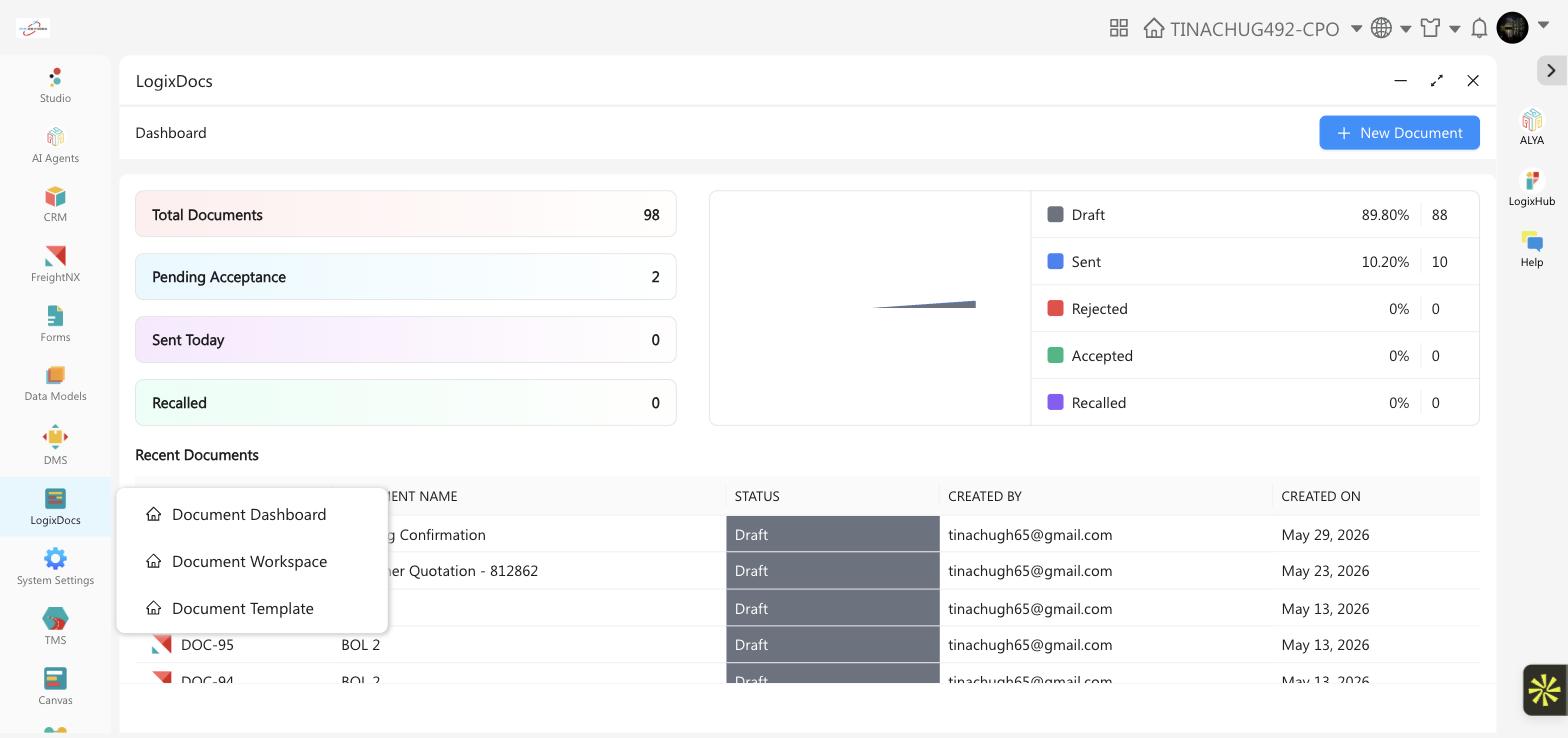
The typical workflow
Open Document Template and pick a ready-made template, or design a custom one for your organization.
From Document Workspace, click + New Document, select that template, and click Create.
Give the document a name and, if the template requires it, link it to a record such as a shipment — this fills in the template's merge fields automatically.
Review and edit the content in the document editor, then click Save to keep it as a draft, or Save & Send Document to email it to a recipient right away.
Track its progress from the status tabs in Document Workspace (Draft, Sent, Accepted, Rejected, Recalled) or from the summary on the Document Dashboard.
Good to know
- LogixDocs is not the same as Forms, which builds standalone surveys and data-collection forms rather than business documents.
- A custom Studio app named something like "Document Management" or "Doc Archive" in your sidebar is a separate, organization-specific app — not LogixDocs.
- You can also reach LogixDocs from a related record in another module, such as a FreightNX shipment, to see or create documents linked to it.