Please select an article from the left menu to display its content.
Connect Apps lets you link LogixFlow to third-party platforms — Logix Platform instances, Google Workspace, and QuickBooks Online — so master data, files, and notifications sync automatically once connected.
Overview
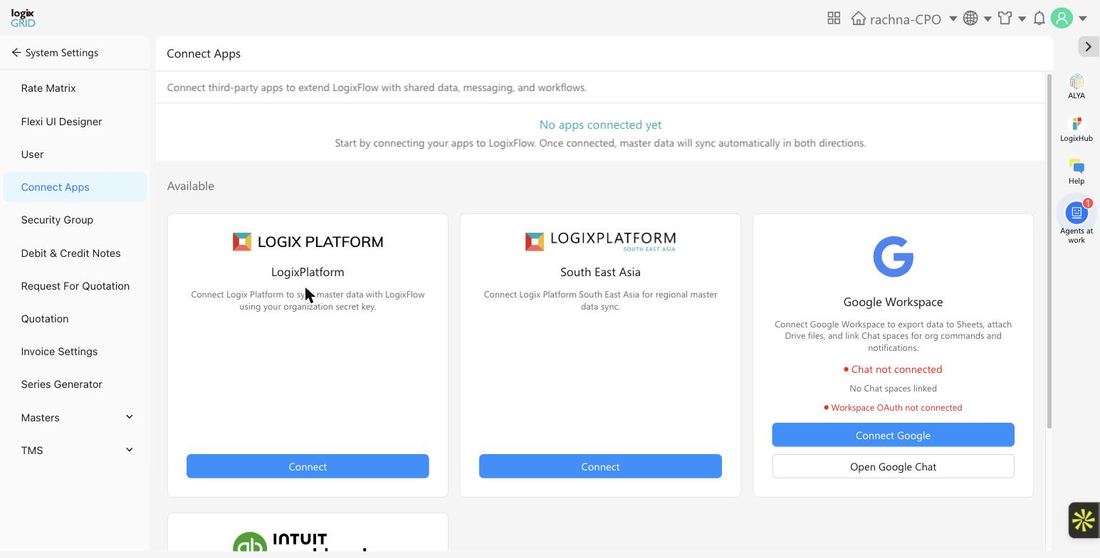
The Connect Apps screen is a central hub for third-party integrations. Each available app is shown as a card with its own connection status and controls. Once connected, master data syncs automatically in both directions between LogixFlow and the linked app.
Prerequisites
- Admin access to System Settings.
- Credentials or account access for the third-party app you want to connect (e.g. a Google Workspace admin account, a QuickBooks Online account, or an organization secret key for Logix Platform).
Connect an App
- Go to System Settings → Connect Apps.
- Find the app you want to connect under Available.
- Click the app's Connect button (for Logix Platform and Logix Platform South East Asia) or the specific action button shown (Connect Google / Open Google Chat for Google Workspace, Connect to QuickBooks for QuickBooks Online).
- Follow the third-party authentication flow to complete the connection.
- Once connected, the card's status updates to reflect the active connection, and master data begins syncing automatically.
Available Integrations
| App | Purpose | Notes |
|---|---|---|
| Logix Platform | Sync master data with LogixFlow using your organization's secret key. | — |
| Logix Platform South East Asia | Regional master data sync for the South East Asia Logix Platform instance. | — |
| Google Workspace | Export data to Sheets, attach Drive files, and link Chat spaces for org commands and notifications. | Connects Chat and Workspace OAuth separately — both must be connected for full functionality |
| QuickBooks Online | Sync customers and invoices with QuickBooks Online. | — |
Usage Across Modules
- Finance: The QuickBooks Online connection syncs customers and invoices, reducing duplicate data entry between LogixFlow and accounting.
- Collaboration: Google Workspace connections let teams export shipment/report data to Sheets, attach Drive files to records, and receive notifications in linked Chat spaces.
- Multi-instance Setups: The Logix Platform connections keep master data (such as customers or products) in sync across separate Logix Platform deployments, including regional ones.
Notes / Best Practices
- Only connect apps you actively use — each active connection syncs data continuously and should be monitored.
- For Google Workspace, connect both Workspace OAuth and Chat if you want the full feature set (Sheets/Drive export plus Chat notifications).
- Review connected apps periodically, especially after staff changes, since integrations are often tied to an individual's account credentials.
FAQs
- What happens to existing data when I connect an app?
- Once connected, master data syncs automatically in both directions between LogixFlow and the linked app.
- Can I disconnect an app later?
- Yes, connected apps can be disconnected from the same Connect Apps screen where they were connected.
- Do I need a secret key for every integration?
- No — Logix Platform connections use an organization secret key, while Google Workspace and QuickBooks Online use their own OAuth-based sign-in flows.