Please select an article from the left menu to display its content.
Automation lets DMS react to shipment events on its own, instead of someone having to watch the shipment list and act by hand. You set up a rule that says when a shipment event happens, do this — for example, email the customer whenever a shipment's status changes to Out For Delivery. Once saved, the rule runs automatically every time its trigger condition is met.
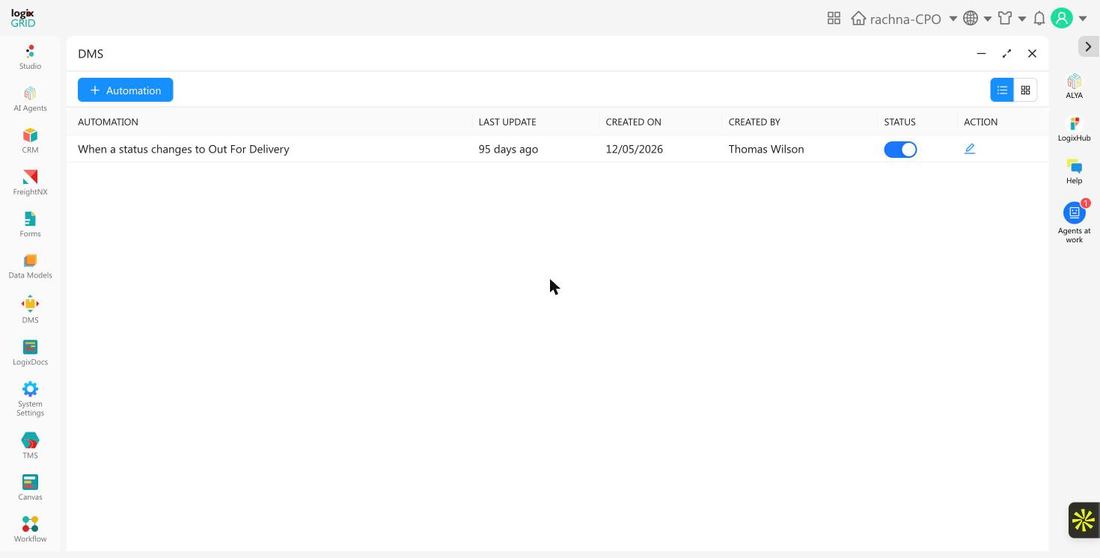
Getting to Automation
- In the left sidebar, click DMS. A popup opens with the DMS screens.
- Click Automation. LogixFlow opens the automation rules list.
The list shows every automation rule for DMS Shipment, when it was last updated and by whom, and whether it's currently active.
| Column | What it's for |
|---|---|
| Automation | A summary of the rule's trigger, such as "When a status changes to Out For Delivery." |
| Last Update | How recently the rule was changed. |
| Created On / Created By | When the rule was added and who added it. |
| Status | Toggle a rule active or inactive without deleting it. Only active rules fire on matching shipment events. |
| Action | Click the pencil icon to edit the rule. |
Step 1: Choose the trigger
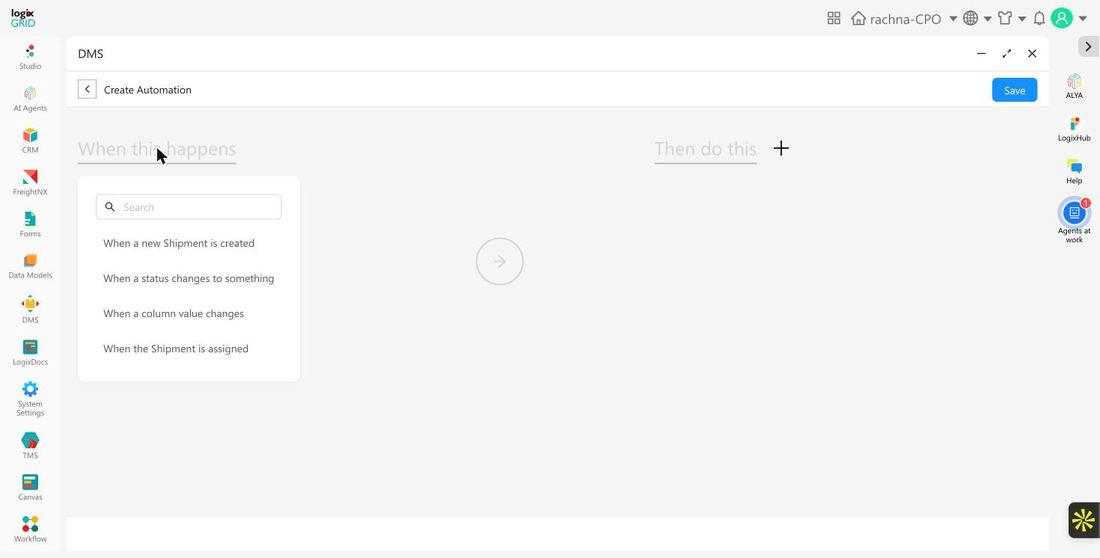
- Click + Automation.
- Click When this happens to open the trigger picker.
- Choose one: When a new Shipment is created, When a status changes to something, When a column value changes, or When the Shipment is assigned.
Step 2: Choose the action
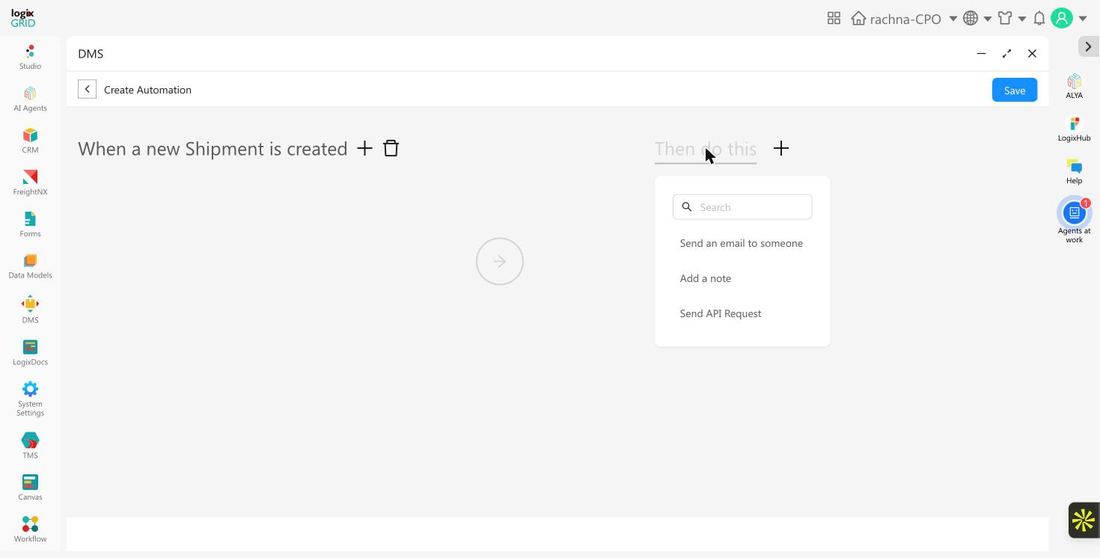
- Click Then do this to open the action picker.
- Choose one: Send an email to someone, Add a note, or Send API Request.
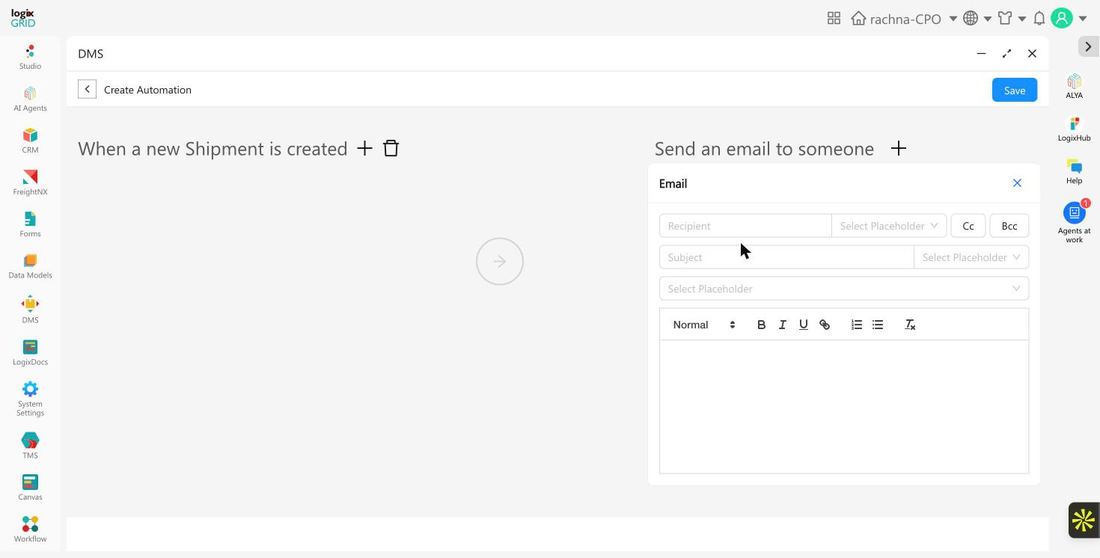
If you chose Send an email to someone, a panel opens for Recipient (with Cc and Bcc), Subject, and a rich-text message body. Use Select Placeholder next to the recipient and subject fields, and above the message body, to insert shipment field values into the email automatically.
Step 3: Save
Once the trigger and action are configured, click Save. The rule becomes active immediately and runs automatically whenever its trigger condition is met on a DMS shipment in this org. Use the Status toggle on the list at any time to pause or re-enable a rule without deleting it.
Good to know: DMS Automation always applies to Shipment events in the DMS module — it can't be scoped to CRM leads or FreightNX shipments. If you need automations tied to a custom Studio app instead, use that app's own Automation tab under Studio → Design.