Please select an article from the left menu to display its content.
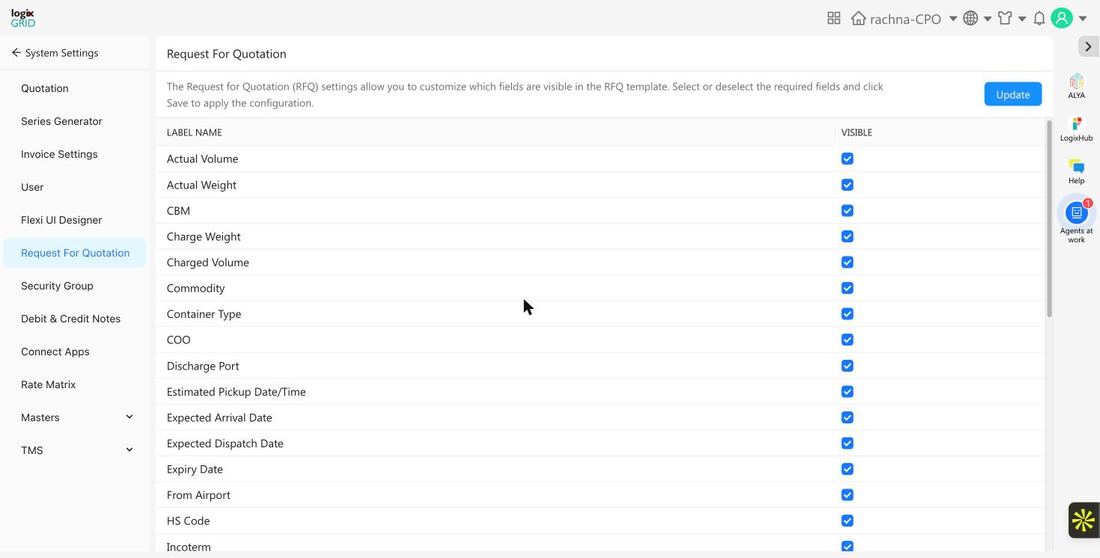
The Request For Quotation settings page lets you control which fields appear on your RFQ template — select or deselect fields and update to apply the configuration across every new RFQ.
Overview
Like Debit & Credit Notes and Invoice Settings, Request For Quotation is a field-visibility configuration screen rather than a list of records. A checklist of every field the RFQ template supports — cargo details, ports, dates, dimensions, and more — lets you show or hide each one to match your team's sourcing workflow. Fields you deselect simply won't appear on new RFQs; the underlying data isn't deleted.
Prerequisites
- Admin or Procurement role with access to System Settings.
- Decide which shipment details (air, ocean, or general cargo fields) your RFQ process actually needs before changing the defaults, since some fields only apply to specific transport modes.
Configure RFQ Field Visibility
- Go to System Settings → Request For Quotation.
- In the field list, check or uncheck the Visible box next to each label to include or exclude it from the RFQ template.
- Click Update to save and apply the configuration to new RFQs.
Field Reference
The RFQ template supports the following fields. Most are visible by default; a few — mainly air-specific fields and invoice fields — are hidden by default and can be turned on if your process needs them.
| Field | Default Visibility | Notes |
|---|---|---|
| Actual Volume / Actual Weight | Visible | Cargo volume and weight as measured. |
| CBM | Visible | Cubic meters. |
| Charge Weight / Charged Volume | Visible | Weight/volume used for rating purposes. |
| Commodity | Visible | Description of the goods being shipped. |
| Container Type / Number Of Container | Visible | Relevant for ocean/FCL shipments. |
| COO | Visible | Country of Origin. |
| Discharge Port / Loading Port | Visible | Ocean freight origin/destination ports. |
| Estimated Pickup Date/Time | Visible | — |
| Expected Arrival Date / Expected Dispatch Date | Visible | — |
| Expiry Date | Visible | RFQ validity/expiry date. |
| From Airport / To Airport | Visible | Air freight origin/destination airports. |
| HS Code | Visible | Harmonized System code for customs. |
| Incoterm | Visible | Trade term, e.g. FOB, CIF. |
| Invoice Currency / Invoice Value | Hidden | Turn on if your RFQ needs commercial invoice details. |
| Load Type / Move Type | Visible | — |
| LxBxH | Visible | Length x Width x Height dimensions. |
| Package Type | Visible | Linked to the Package Type master. |
| Preferred Airline / Preferred Flight | Hidden | Turn on for air-freight RFQs where a specific carrier/flight is required. |
| Quantity | Visible | — |
| Receiver Details / Shipper Details | Visible | — |
| Service / Shipment Category / Shipment Type | Visible | — |
| Transport Mode | Visible | Air, Ocean, Road, etc. |
| UOM | Visible | Unit of measure. |
Usage Across Modules
- Procurement / Sourcing: These settings control what your team fills in — and what vendors see — when creating and sending out RFQs for shipments.
- Turning on air-specific fields (Preferred Airline, Preferred Flight, From/To Airport) is most useful for teams that regularly source air freight quotes; ocean-focused teams may prefer to keep those hidden and rely on Loading/Discharge Port and Container Type instead.
Notes / Best Practices
- Only enable fields your team actually uses — a shorter, relevant RFQ form is faster to fill out and easier for vendors to quote against.
- Turn on Invoice Currency and Invoice Value if your RFQs need to capture commercial value for customs or insurance purposes.
- Revisit this configuration when you start sourcing a new transport mode (e.g. adding air freight) since mode-specific fields are hidden by default.
FAQs
- Does hiding a field delete existing data?
- No. Hiding a field only removes it from the RFQ template going forward — it doesn't affect data already entered on existing RFQs.
- Why are some fields hidden by default?
- Fields like Preferred Airline, Preferred Flight, Invoice Currency, and Invoice Value are relevant to specific transport modes or use cases, so they start hidden to keep the default form concise.
- Do I need to click Update for changes to take effect?
- Yes — check or uncheck the fields you want, then click Update to apply the configuration.