Please select an article from the left menu to display its content.
The Product module lets you maintain a master catalog of products — including pricing, stock thresholds, packaging, and SKU-level variants — for use across DMS, warehousing, and order/shipment workflows.
Overview
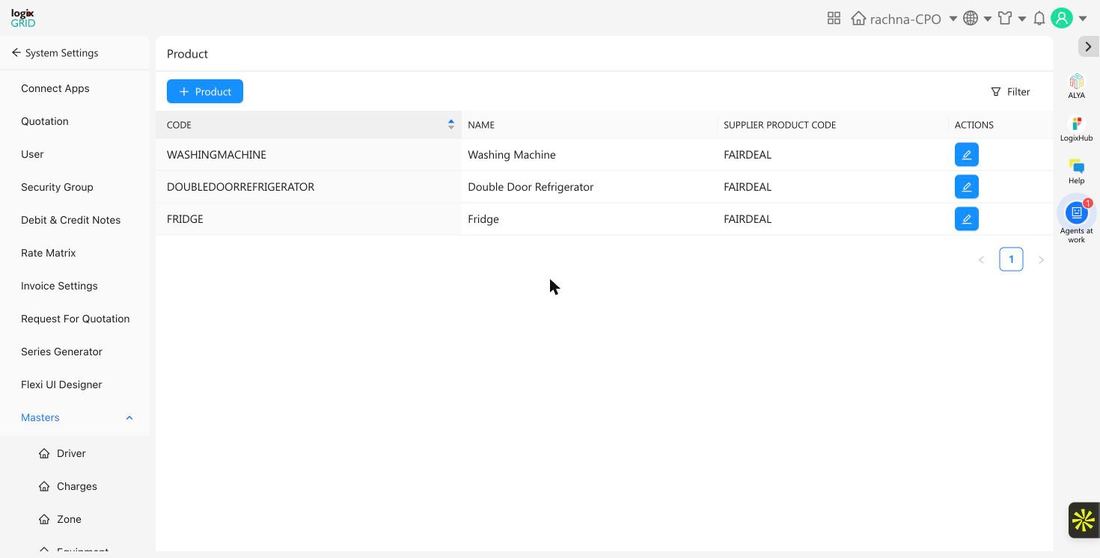
A Product record defines an item in your catalog — its identifying codes, supplier, pricing, packaging, and stock thresholds. Products are linked to a Supplier and an Operating Unit, and can carry one or more SKU variants (for example, different colors or sizes of the same product). The Product list shows each product's code, name, and supplier product code.
Prerequisites
- Admin or Catalog/Inventory role with access to System Settings.
- A Supplier and Operating Unit should already exist, since both are required when creating a product.
- A Package Type should already exist if you want to link one to the product.
Create a New Product
- Go to System Settings → Masters → Product.
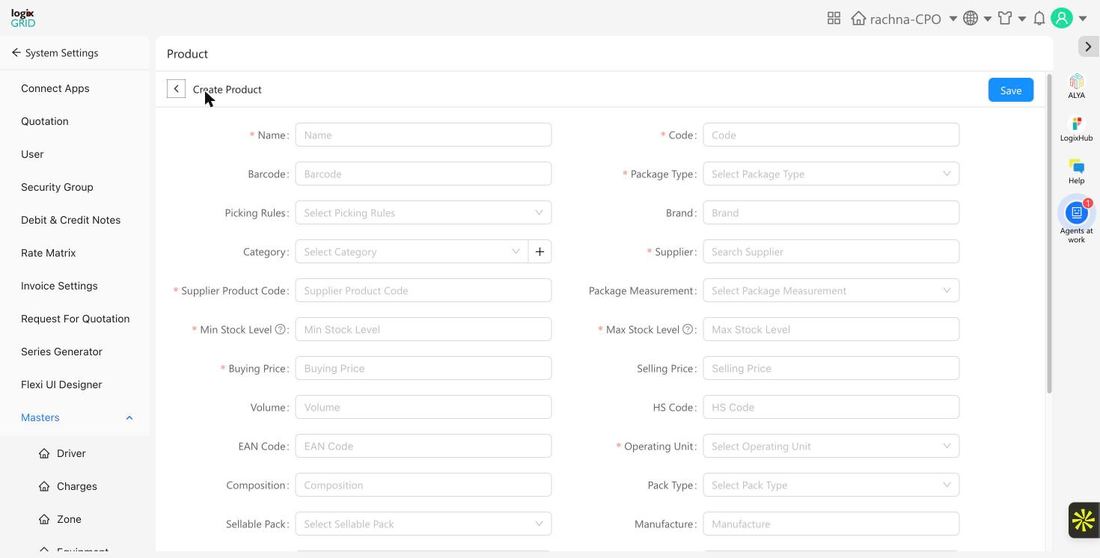
- Click + Product to open the product creation form.
- Enter the Name and Code (both required), and optionally a Barcode.
- Select a required Package Type, and optionally a Brand, Category, and Picking Rules.
- Search and select the required Supplier, and enter the required Supplier Product Code.
- Enter the required Min Stock Level, Max Stock Level, and Buying Price; optionally add Selling Price, Volume, HS Code, and EAN Code.
- Select the required Operating Unit, and optionally fill in Composition, Pack Type, Sellable Pack, Manufacture, Stock Quantity, Volume Type (defaults to CBM), and a Description.
- Optionally add one or more rows under SKU (Stock Keeping Unit) for product variants — see SKU below.
- Click Save to create the product.
Field Reference
| Field | Required | Description | Examples / Notes |
|---|---|---|---|
| Name | Yes | Product name. | Washing Machine, Fridge |
| Code | Yes | Unique product code. | WASHINGMACHINE, FRIDGE |
| Barcode | No | Product barcode value. | — |
| Package Type | Yes | Packaging used for this product, linked to the Package Type master. | Box, Envelope |
| Picking Rules | No | Warehouse picking strategy for this product. | — |
| Brand | No | Product brand. | — |
| Category | No | Product category; new categories can be added inline with the + button. | — |
| Supplier | Yes | Supplier this product is sourced from. | FAIRDEAL |
| Supplier Product Code | Yes | The supplier's own code for this product. | — |
| Package Measurement | No | Standard package measurement used for this product. | — |
| Min / Max Stock Level | Yes | Reorder thresholds used for stock alerts. | — |
| Buying Price | Yes | Cost price from the supplier. | — |
| Selling Price | No | List/sale price. | — |
| Volume | No | Product volume. | — |
| HS Code | No | Harmonized System code, for customs/trade documentation. | — |
| EAN Code | No | European Article Number / barcode standard. | — |
| Operating Unit | Yes | Operating unit this product belongs to. | rachna-CPO, Vancouver |
| Composition | No | Material or ingredient composition. | — |
| Pack Type / Sellable Pack | No | How the product is packed and sold. | — |
| Manufacture | No | Manufacturer name. | — |
| Stock Quantity | No | Current stock on hand. | — |
| Volume Type | No | Unit used for volume. Defaults to CBM. | CBM |
| Description | No | Free-text product description. | — |
SKU (Stock Keeping Unit)
Use the SKU table at the bottom of the product form to define individual variants of the product — for example, different colors or sizes. Click + SKU to add a row, then fill in Type, Part Number, Name, EAN Number, Color, Size, and Quantity for that variant.
Usage Across Modules
- DMS: Products are used when creating shipment/order line items, so weights, volumes, and packaging are pulled from the product master automatically.
- Inventory: Min/Max Stock Level thresholds support stock-level alerts and reorder workflows.
Notes / Best Practices
- Use unique, consistent Product Codes across your catalog to avoid duplicate or ambiguous entries.
- Keep Min/Max Stock Level thresholds current so reorder alerts stay meaningful.
- Use the SKU table for genuine product variants rather than creating a separate product per variant.
FAQs
- Can I edit a product after it's created?
- Yes. Open the product from the list and update any field, then save.
- Is the Supplier field required?
- Yes, every product must be linked to a supplier.
- Do I need to fill in SKU rows?
- No, SKU rows are optional and only needed if the product has variants.